Ultimate Focus Timer: Why make a timer work?
Published · 10 min read
On this page
Translated with machine assistance. Refer to the original for technical wording. Also available in
I created Ultimate Focus Timer trying to find a way to help me organize my work time and increase my productivity.
The idea I started with is simple: a session where I work on something specific, a timer that defines its boundaries, and music I choose while I work. Then a rest period, and then I return to the next part.
I wanted to combine this idea into a tool that I could use and modify as I needed. This is similar to my relationship with other tools: I make or learn something that helps the work, and then I let it take its natural place within it.
What program?
It is a desktop application built using Python and Tkinter, combining a session timer with task management, music playback, session history and a statistics dashboard. It can be handled from the graphical interface or from the command line. 1, 2
I like to think of it as a way to answer three little questions:
What am I going to work on now? How much time will I devote to it? What happened when the period ended?
The first question may seem too simple to require a program, but it changes the meaning of timer. Running a timer without a clear mission can end up being time consuming, and I don’t know exactly where it went.
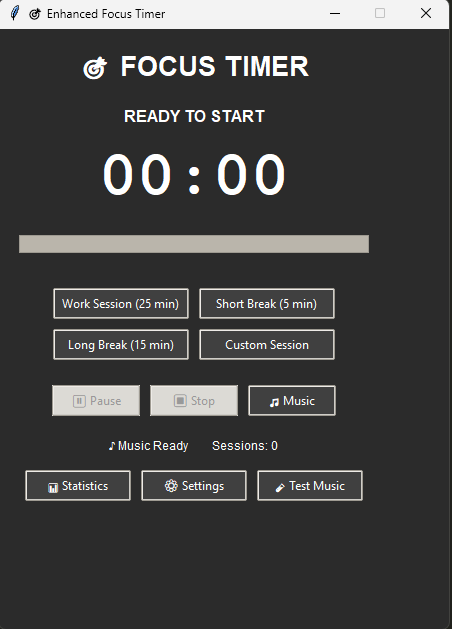

What is a session?
The session here is a period with a beginning and end and a type: work or rest.
The app is based on the Pomodoro idea associated with Francesco Cirillo: dividing work into periods, famous for the formula of 25 minutes of work followed by five minutes of rest. What’s important to me is having a clear cycle of action, pausing and review, not thinking that 25 fits every task and every person. 3
The default settings in the project are:
| Period type | Default Duration |
|---|---|
| Session | 25 minutes |
| Short rest 5 minutes | |
| Long rest | 15 minutes |
| Long rest period After every four working sessions |
Durations are adjustable, and there are custom sessions, with commands to start, pause, resume, and end. So I can start with the usual setting, and then adjust it depending on the nature of the task. 4
The session is not necessarily a complete task. It may take several sessions to read a research paper, while part of a session is enough to correct a small error. Separating the task from the time period allows me to describe the work as it is, rather than compressing it into a fixed number.
How can it be used in real work?
Let’s say I have a research paper that I want to understand. The phrase “read the paper” is too broad, and doesn’t tell me where to start.
I could replace it with a task like: “Read the system model section, and write its assumptions in five bullet points.” This is an output that I can recognize when I’m done.
The proposed course is as follows:
- I add the task and select the part I will work on.
- Start a session, select the music or leave it off.
- Work on the selected part, and use pause if you need to stop.
- At the end of the period, I review what I have accomplished and take an appropriate rest.5. I decide whether to complete the same part or start the next part.
This is an example of how to use the tool, not a recipe that guarantees every session will be perfect. The session may end with you discovering that the question is more difficult than you expected. This is useful information as well.
The project supports adding, modifying, and completing tasks, estimating the number of work sessions required for them, and associating sessions with the task. Comparing the estimate with the record later can help make the next estimate closer to reality. 5
Why is the music inside the timer?
Because it was part of the idea that I wanted to put together in the tool.
Instead of the session being in one place and the music in another, there are ways to control playback and audio, with music linked to events such as pause and resume. It can be set to stop during rest. The project uses MPV to play local files or links and playlists. 6
But music is a choice. If it’s distracting me from a particular task, there’s no reason for me to leave it running just because the app provides it. Likewise, I do not present a specific type of sound or frequency as a proven means of increasing the ability to concentrate.
The function I want is clear: facilitating what I choose to hear during the session.
What are the benefits of statistics?
After the day is over, it may be difficult to remember exactly what happened. A session log gives me a trace back: sessions, durations, and a breakdown of work into days and hours.
The project includes tools to analyze and display these logs, with data and summaries exported to CSV or JSON. This allows the data to be used outside the app as well if you want to analyze it in another way. 7
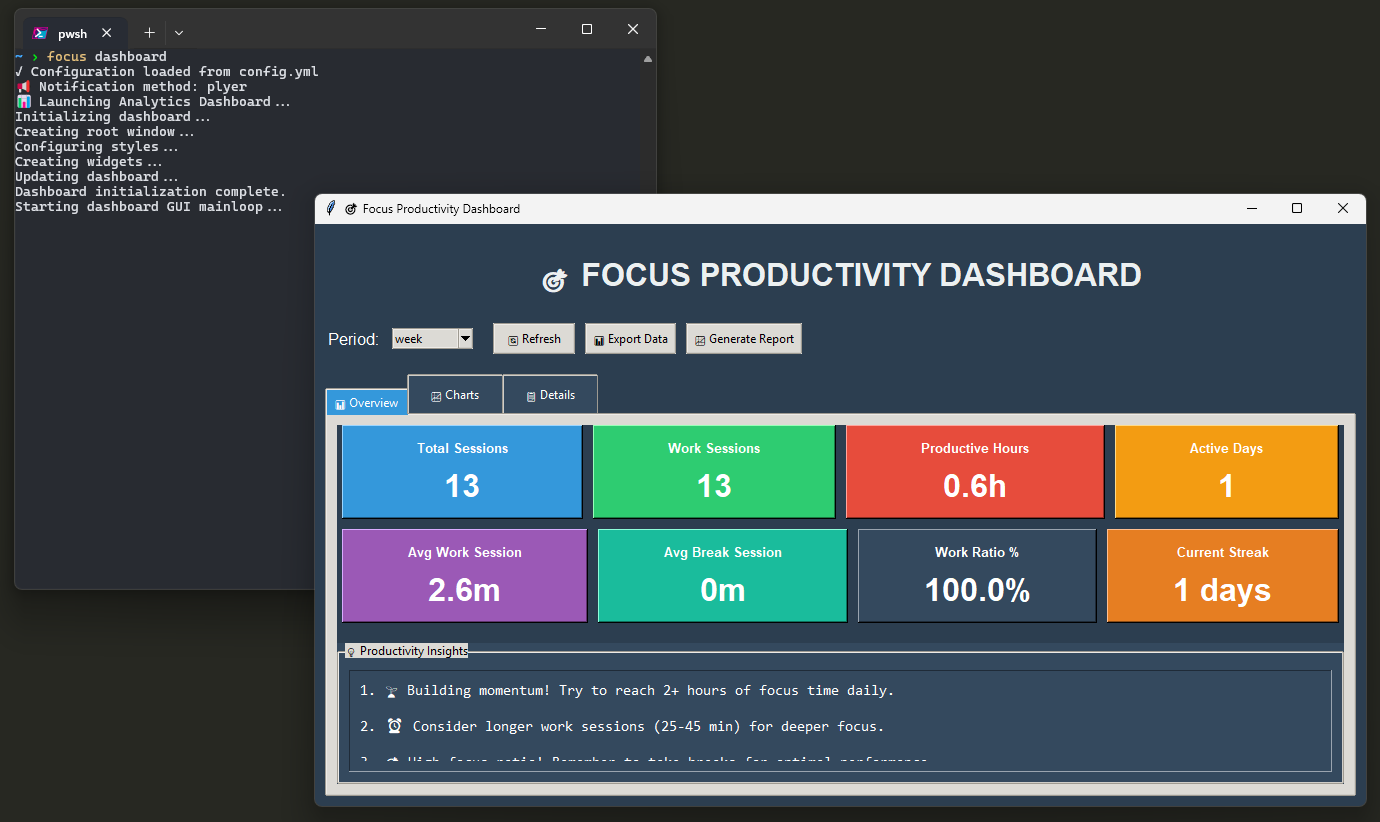

There is a difference that I want to keep clear: Time logged in the timer is not an independent measure of quality of work.
I may log a lot of time on a task that doesn’t need it, or I may come up with an important idea in a short session. Even if the interface uses an expression such as “hours produced,” what the program essentially knows is the activity recorded, not the value of the academic or professional result.
I want statistics to help me ask a better question about my day, not turn into a number that I’m trying to inflate in any way.
Did Vim animations reach the timer as well?
Yes, there are Vim-inspired shortcuts within the task interface. Here’s a practical example of the idea I mentioned in Vim article]: After an animation becomes familiar, it finds a place in other tools.
| Abbreviation | Its function is in the Tasks interface | |
|---|---|---|
j and k |
Navigate between tasks | |
i or a or t |
Add task | |
e |
Edit task | |
x |
Toggle task completion status | |
Enter or s |
Start focusing on the task | |
Space or p |
Pause or resume the session | |
? |
View Help | These are the functions of the key handler in the version of the project I reviewed; Not all keys work the same way while typing inside input fields. 8 |
I don’t need to know Vim to use the app, because the buttons are there. Shortcuts are an additional option for those who prefer them.
What is the inside made of?
The usage level is temporary. But inside there are parts that have different responsibilities:
| Part | His job |
|---|---|
| Python | Application logic and data management |
| Tkinter and ttk | Windows, buttons and interface elements |
| Manage sessions and tasks | Timer status, durations, tasks and history |
| MPV | Play music from selected sources |
| Pandas, Matplotlib and Analysis Tools | Process session history and display statistics |
| Google Tasks integration | Optional synchronization of tasks after setting up the connection |
These components are documented in the project files and dependencies. Integration with Google Tasks is optional; Timer and tasks can be used locally, while sync or music functions from the Internet connect to the user’s chosen service. 2, 6, 9
Having more than one part does not mean that the user needs to set up everything the first time. My suggested start is to start a timer, add a task, and then try the rest of the functions as they become needed.
How do I run it from the source?
The project is available in the repository, and the following commands are intended for those with a suitable Git and Python environment. A practical example is using Python 3.11 or 3.12 within a virtual environment, with Tk and a desktop interface available to run the window.
git clone https://github.com/ahmelkholy/ultimate-focus-timer.git
cd ultimate-focus-timer
python -m venv .venv
On Linux or macOS I activate the environment this way:
source .venv/bin/activate
And on PowerShell in Windows:
.venv\Scripts\Activate.ps1
Then install the project and run the interface:
python -m pip install .
python main.py --gui
The installation process uses the file pyproject.toml. The launcher also accepts --console for text mode and --dashboard for statistics panel. Some Linux distributions may need to install Tk separately, and playing music requires an external MPV driver. 1, 2
These commands are based on the version files referenced in the sources, and are not the result of a test installation on each operating system. If dependencies or mode of operation change, the project files are the most recent reference.
What do I want to develop through use?
For me, the most important question is not: how many features can be added to the timer?
The question is: Can I easily start a session, understand what happened, and then get back to work?
Any new addition should help this path. If managing the timer becomes more attention-grabbing than the task you opened the timer for, you’ve lost the point.
That’s why I look at the project as a tool that can be modified as needed, not as a final solution to the productivity problem. He can help me set time limits, but he does not choose the important task for me, explain the paper, or write up the results of the experiment.
I want something smaller and more specific: to make it easier for me to say, “This is the task I’m going to work on now,” and get started.
Sources and code
The following code references refer to version d9c2a7829959e7e5ae0fd7eeb62f603867cb66ac, so that the functionality description remains subject to revision as the project evolves.
1. Ultimate Focus Timer — main.py. Operation options, interface and script mode.
- Ultimate Focus Timer — pyproject.toml. How to build the package and its dependencies.
- Francesco Cirillo — The Pomodoro Technique. Definition of the method on the book page at the publisher .
- Ultimate Focus Timer — core.py. Default settings and session management.
- Ultimate Focus Timer — Task management. Tasks, estimates, and session recording.
- Ultimate Focus Timer — MusicController. Play music with MPV.
- Ultimate Focus Timer — SessionAnalyzer. Log analysis and data export.
- Ultimate Focus Timer — Keyboard handler. Task interface shortcuts.
- Ultimate Focus Timer — Google integration and local paths. Google Tasks integration, local data paths.
Code and sources last revised: November 3, 2026. Function descriptions are code-based; Images are original screenshots saved from a previous release.